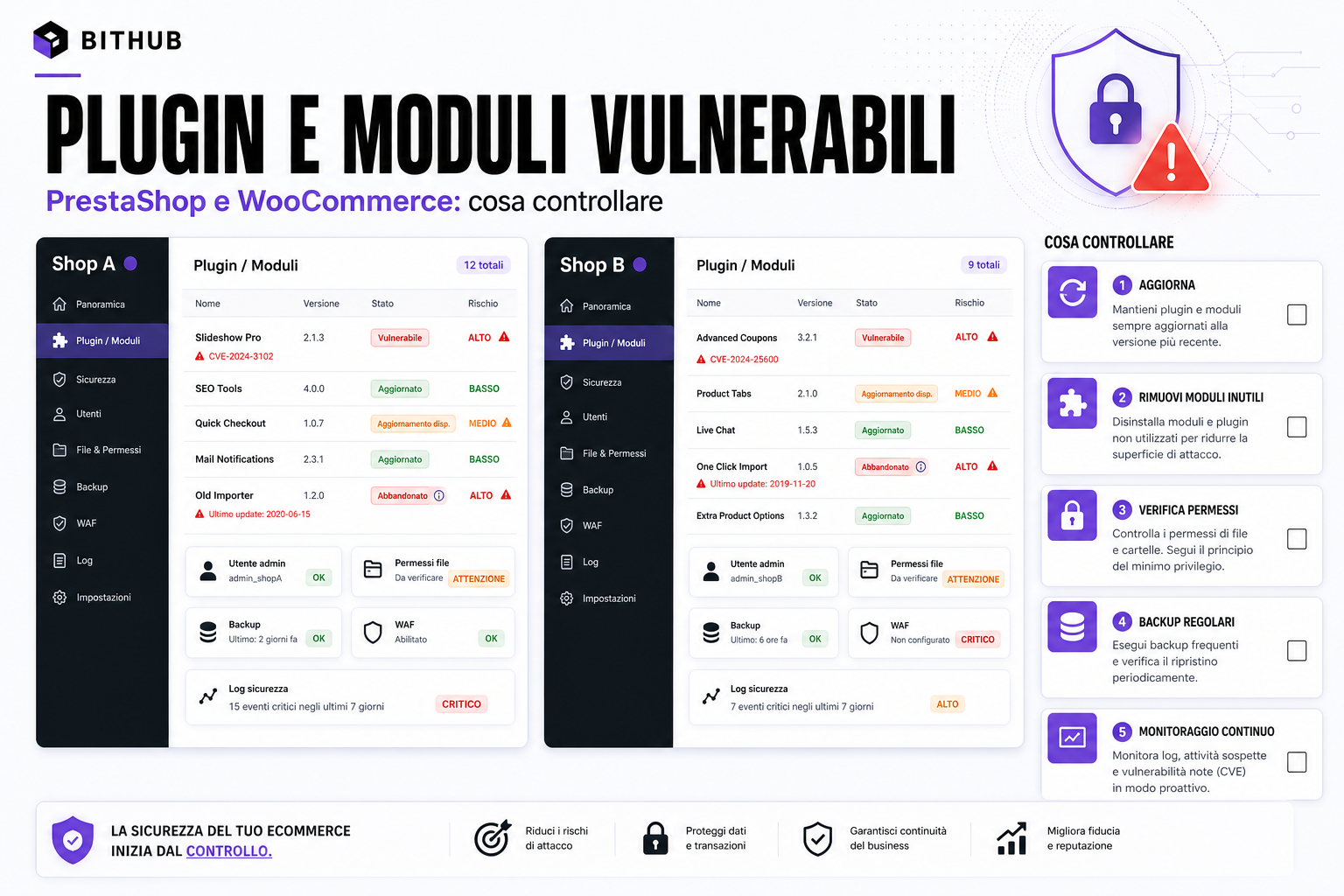
PrestaShop and WooCommerce can both be excellent foundations for selling online. But unchecked plugins, modules and themes can become the weakest point of the whole store.
The problem isn't using extensions. The problem is using them without governance: modules installed years ago, plugins never updated, abandoned premium components, hand-modified themes, old payment integrations, forgotten overrides, backups never tested and no logs to consult when something happens.
In an eCommerce store the risk is higher than on a brochure site, because orders, customer accounts, addresses, payments, discounts, coupons, APIs, couriers, marketplaces and ERP systems all pass through it. A vulnerability doesn't just hit "the site": it can hit revenue, reputation and personal data.
Why plugins and modules are a target
Attackers aren't always hunting for sophisticated flaws. More often they're looking for predictable installations and well-known components.
- WordPress plugins with publicly known vulnerabilities.
- PrestaShop modules that were never updated.
- Premium themes downloaded from untrustworthy sources.
- Extensions abandoned by their developer.
- Old test files left online.
- Overly broad permissions on writable folders.
- Admin areas exposed without even basic protection.
- API keys stored badly or never rotated.
An eCommerce store with lots of plugins isn't automatically insecure. But every extension widens the attack surface. The more components you have, the more you have to check.
Quick checklist: what to check first
If you need to run a security check on PrestaShop or WooCommerce, start here.
- Inventory: a complete list of plugins, modules, themes, overrides and integrations.
- Versions: compare installed versions against the latest available ones.
- Maintenance: check when each component was last updated.
- Origin: check whether it comes from an official repository, a reliable marketplace or a dubious source.
- Permissions: check writable files and folders.
- Admin users: remove unused accounts and enable 2FA wherever possible.
- Backups: check frequency, retention and whether restore has actually been tested.
- Logs: logins, errors, admin changes, orders, API calls and uploads.
- WAF: check whether it protects login, checkout and suspicious requests.
- Staging: update in a test environment first, not straight into production.
WooCommerce: the risk isn't only WooCommerce
When people talk about WooCommerce security, many look only at the main plugin. In practice the risk often comes from the ecosystem around it.
- checkout plugins;
- payment gateways;
- discount and coupon plugins;
- shipping plugins;
- import/export plugins;
- page builders;
- SEO plugins;
- form and newsletter plugins;
- the theme and child theme;
- custom snippets copied in over the years.
A plugin that doesn't look "critical" can still have access to data, files, orders or admin functions. That's why the check has to cover the entire WordPress installation, not just WooCommerce.
PrestaShop: modules, overrides and old customisations
On PrestaShop, besides the modules, you also have to check overrides, modified templates, old integrations and folders left behind by previous work.
The most sensitive areas are:
- payment and checkout modules;
- catalogue import modules;
- marketplace and feed modules;
- newsletter and form modules;
- image management and file upload modules;
- controller and class overrides;
- the back office and staff users;
- webservice APIs and access keys;
- admin folders that were renamed but are still exposed;
- old files left in production.
Many problems come from layering: years of modules installed, badly uninstalled, modified by several suppliers and never genuinely removed.
Abandoned plugins: the silent risk
An abandoned component doesn't automatically become dangerous, but the risk grows with every month that passes.
Signals worth weighing:
- no updates for years;
- no declared compatibility with recent versions;
- a developer who is no longer active;
- open issues with no response;
- old dependencies;
- deprecated PHP functions;
- no changelog or security notes.
If a plugin handles login, checkout, uploads, payment or personal data, abandonment weighs even heavier.
Permissions, file uploads and writable folders
Many attacks don't stop at the initial vulnerability. Once inside, the aim is to write malicious files and keep a backdoor.
So you have to check:
- folders the web server can write to;
- unfiltered file uploads;
- PHP files inside image or cache folders;
- permissions that are too permissive;
- file editors left enabled in the admin panel;
- modules that save files without strong checks;
- backups left reachable over the web.
A good configuration limits the damage even if a component is compromised.
Updating without breaking the shop
Many companies don't update for fear of breaking the site. The fear is understandable, but putting it off for months builds up technical and security debt.
The correct process is:
- a full backup of files and database;
- cloning to staging;
- updating the core, plugins, modules and theme;
- testing checkout, accounts, search, cart and payment;
- checking logs and errors;
- release to production in a controlled window;
- post-release monitoring.
The real problem isn't updating. It's updating without a process.
When you need a security audit
An audit becomes urgent when:
- the site hasn't been updated for a long time;
- you don't know how many plugins or modules are installed;
- you've changed suppliers several times over the years;
- you've had strange redirects or spam pages;
- you handle customer data, orders or payments;
- you're about to run a migration or a restyling;
- the site has unusual performance or frequent errors;
- you have no tested backups.
An audit shouldn't just say "there are vulnerabilities". It has to produce priorities, ownership and a plan of action.
How BitHub works
For WordPress, WooCommerce and PrestaShop sites we can run a check on:
- an inventory of plugins, modules, themes and customisations;
- vulnerable versions or abandoned components;
- users, roles and admin access;
- permissions on sensitive files and folders;
- backups and the ability to restore;
- logs, suspicious traffic and bots;
- Search Console and SEO spam signals;
- checkout, customer accounts, forms and APIs;
- an update and hardening plan.
This work connects to our pages on cyber security for websites, vulnerability assessment and WordPress, WooCommerce and PrestaShop security.
Useful sources
In putting the checklist together we drew on the WordPress documentation on hardening, the WordPress handbook on plugin security, the OWASP Web Security Testing Guide and OWASP's approach to API security.
FAQs
Are WooCommerce and PrestaShop insecure?
No. The risk comes mainly from poor maintenance, vulnerable plugins or modules, weak passwords, wrong permissions, untested backups and customisations left unchecked.
How many plugins are too many?
There's no magic number. The point is knowing what each component does, whether it's up to date, whether you actually need it and how much access it has to critical data or functions.
Should I remove unused plugins?
Yes. A deactivated or abandoned plugin can still leave files, tables or configurations behind. The less attack surface you have, the better.
Can I update straight in production?
Better not, on an eCommerce store. Use staging, backups and checkout testing before release.
Do I need a WAF?
A WAF helps, but it doesn't replace updates, correct permissions, backups, hardening and keeping track of vulnerable components.
Want to know whether your plugins or modules are a risk?
We can run a technical inventory, identify the critical components and prepare an update and hardening plan without disrupting the day-to-day running of the shop.